Members
See your members with their licence, AI usage, limits and roles, and manage them
The page Organization settings → Members & access → Members lists every member of your organization in one table, together with their licence, their AI usage and their limits.
Licences
The License column shows which licence a member holds. It cannot be changed here: clicking it takes you to the member's row on the Licenses tab of Billing, where you assign licences, change the tier, release them and order more.
When the limit is reached, you need more licences before you can invite or activate members. Members without a licence can sign in but cannot use the chat.
Member list
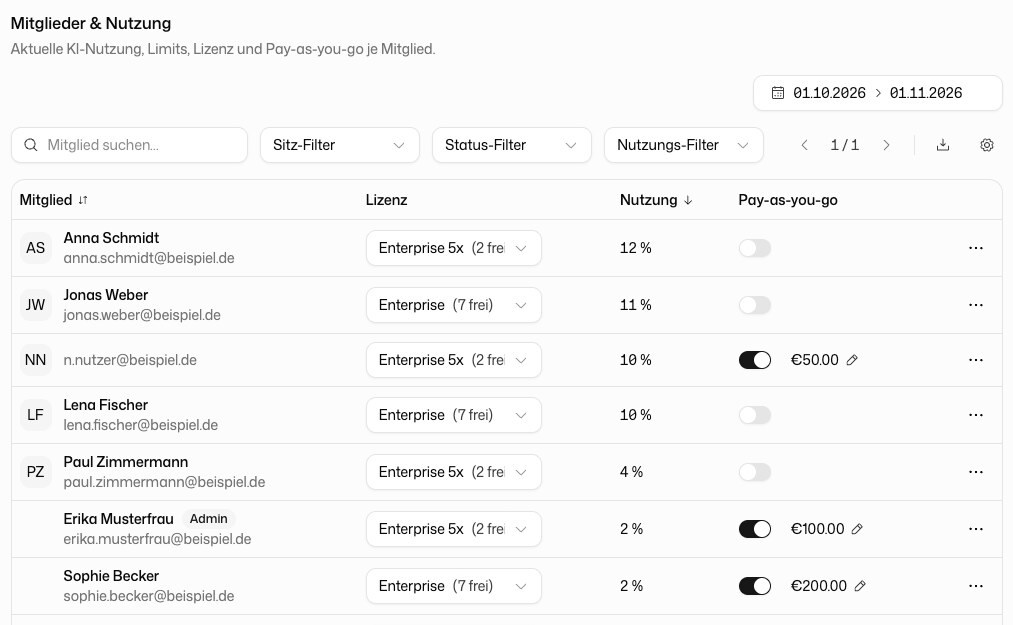
The table Members & usage shows each member with Member, License, Registered and Last active. If you may manage billing, you also see Usage and Pay-as-you-go. Admins carry an Admin badge.
Use Search member… to find someone by name or email. Three filters narrow the list:
| Filter | Options |
|---|---|
| Seat | With license, No license |
| Status | Active, Inactive, Deleted |
| Usage | ≥ 80 %, ≥ 95 % of the plan limit |
The Actions menu of a row offers Edit, Activate or Deactivate, Delete and, for deleted members, Restore. Pending invitations appear below the table, where you can resend or revoke them.
Invite members
Click Invite members, pick a Role and enter one or more email addresses. Each address gets its own invitation. Addresses that already belong to a member or already have an invitation are skipped.
The invite button only exists while your organization signs in with email and password. With SSO, members are created on their first sign-in through your identity provider. With SCIM, you manage them in your identity provider. See Sign-in & SSO.
Role on first sign-in (SSO)
Once SSO is active and you have created your own roles, admins with full access can choose the Role on first sign-in (SSO). New members get that role on their first SSO sign-in. The default is Default (User), the predefined User role.
Edit a member
Click a member's row or Edit to open their page. Under Profile you can change First name, Last name and the roles. The email address cannot be changed here. Roles are defined under Roles.
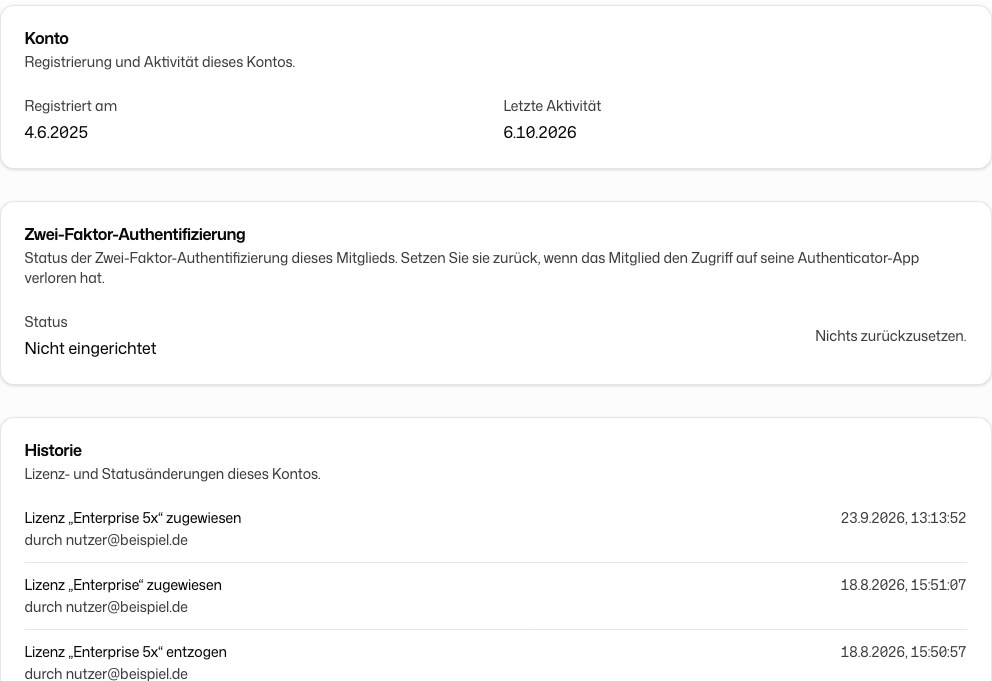
The member page also shows:
- Account: when the member registered and when they were last active.
- Two-factor authentication: whether the member has set it up. Reset removes their authenticator and ends all their sessions, including in the mobile, desktop and Office apps. Use it when someone has lost access to their authenticator app. They then sign in again and set up two-factor authentication from scratch.
- History: licence and status changes of the account, with the person who made them.
- Models & integrations: exceptions for this one member, see below.
Models and integrations for a single member
In Models & integrations you decide per model and integration whether this member may use it: On allows it, Off blocks it, Inherit keeps the setting from the level above. A setting for a single person always overrides a group setting. The organization-wide defaults live under AI models and Integrations, exceptions for whole groups under Groups.
Set pay-as-you-go per member
If pay-as-you-go is set up for your organization, the Pay-as-you-go column lets you decide per member whether they may keep working after reaching their limit. Switch on Enable pay-as-you-go and, if you like, enter a Monthly limit (EUR). Leave the limit empty for no individual cap. Organization-wide controls are described under Pay-as-you-go.
Deactivate or delete members
A deactivated member cannot sign in and uses no licence. You can activate them again at any time.
A deleted member loses all access immediately. Their account stays in the table under the status filter Deleted until the retention period ends (30 days by default). After that it is deleted for good together with its data.
While SCIM is active, the page shows SCIM user management active. Members can then only be edited in your identity provider, and only inactive members can be deleted.
Restore a deleted member
Until the retention period ends, click Restore in the actions menu of a deleted member or on their page. You need the permission Remove members from the organization. The account returns with its history and data and is active again. If SCIM is active, it returns as inactive, because the identity provider decides who is active. The member signs in again. API keys issued before stay archived.
Inviting the email address of a deleted member creates a new, empty account instead. Once that account exists, the old one can no longer be restored.