Tools in Chat
Web search, image generation and agent mode in the Tools menu, and how approvals work
A model does not only answer from its training. The Tools menu next to the input field gives it extra abilities: current information from the web, images, and access to your connected services and document folders. You switch a tool on, and the model reaches for it when it needs to.
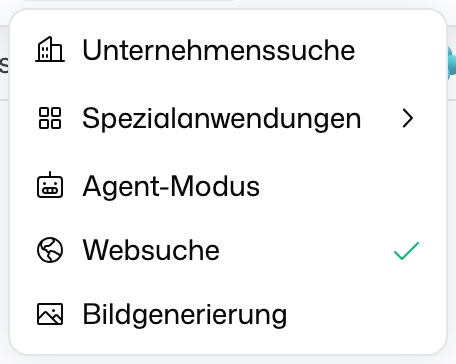
The menu has two parts. Under Capabilities are three switches: Web search, Image generation and Agent mode. Below them, GPTs opens one of your GPTs in a new chat. The Tools button shows the icons of the tools that are currently on.
If the selected model cannot use tools, the switches are greyed out with the note The selected model does not support tools. Pick a different model in the header. Which tools you see at all also depends on your role.
Switch a Tool On or Off
Click a row to switch that tool on or off. Web search and Image generation are on by default, Agent mode is off. A switch you flip stays that way for your next chats too.
If you ask for a search or an image while Web search or Image generation is off, the chat tells you that the tool is switched off. Switch it on and send your message again.
Your organization can set a tool to start switched off. You can still turn it on for the chat you are in, and the menu then shows This chat only. The next chat starts with it off again.
Web Search
With Web search on, the model researches live on the internet for current or factual questions instead of answering from its training. The sources it used appear as references in the answer. Use it for news, prices, releases, or anything that may have changed since the model was trained.
Image Generation
With Image generation on, ask the model for an image and it creates one right in the chat. You can refine the image further in the conversation. If more than one image model is available to you, an arrow at the end of the row opens Image model, where you pick which one to use. While the image is being made, the chat already holds its place in the right shape and shows how long it has taken so far and how long this image model usually takes.
If you ask for several images at once, for example four variants of a logo, they appear together as a group of tiles. Click an image to open it large: with the arrow keys, the arrows or a swipe you move through the group, and from there you can download the image, copy its link or open it in a new tab. Esc closes the view.
If no image comes back, the step Create image in the answer's steps says why. Rejected by the image provider's safety filter means the provider declined the request itself. Sending it again unchanged gives the same result, so rephrase it and leave out what was flagged.
Agent Mode
In Agent mode the model reads from your sources and acts on them: it searches your mail and calendar, opens files in SharePoint, reads Jira tickets or Confluence pages, and searches your document folders. It can also act, for example send an e-mail or update a ticket, after you approve it.
The arrow at the end of the row opens the list of sources: every connected integration and every document folder you can use, each with its own checkbox. The row summarizes how many are selected, for example 18 sources.
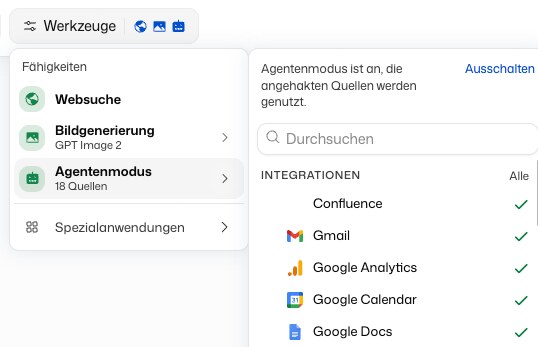
If the model cannot reach a source, check three things in this order:
- Is the service connected under Integrations?
- Is Agent mode on in the Tools menu?
- Is that source ticked in the agent mode source list?
Files you only need for one message are quicker to attach with the + button next to the input field. See Attach files.
The Sandbox
The sandbox handles common office and data formats such as Word, Excel, PowerPoint, PDF, CSV, images and archives. It runs Python and Node.js, converts documents and recognizes text in scanned PDFs. If a tool is missing, the model can usually install it. Files you attach in the chat are available in the sandbox.
- One per conversation. Each conversation has its own sandbox. No other conversation and no other user sees its files.
- Temporary. The sandbox shuts down after a while without activity, and the files in it are deleted. Results the model hands back as downloads stay with the conversation and are also listed under Generated Files. So is everything you attached. Ask for a download of anything else you want to keep.
- Limited storage. Each sandbox has a fixed amount of storage. If it reports that the disk is full, delete files you no longer need or continue in a new conversation. Other conversations are not affected.
- No access to your computer. The sandbox cannot read or write files on your device. Results arrive as downloads, and several files come as one ZIP. To let the AI write straight into a folder on your computer, use Cowork or Code in the desktop app.
- "Preparing the sandbox…" in the reply means the sandbox is still starting. The step continues on its own and you do not need to do anything. If it cannot be prepared in time, the assistant says so in its answer and carries on without it.
The sandbox can reach the internet, for example to install software packages. To block websites for yourself, set Reach websites from the sandbox to Never allow under Permissions. Installing common software packages keeps working, but a script that calls any other website fails. For web content, Web search is the more reliable route anyway.
Approve Actions
Before the model changes something in a connected service, for example sending a mail or writing to a system, the step waits for you. In the answer the step says Waiting for your approval. The question itself appears above the input field: the service, the action and its key details, with All details for the rest.
Click Allow to run the step once, or Deny to refuse it. The arrow next to Allow offers Allow for this chat and Always allow, so the same kind of action runs without asking again. If you want something else, type it into Instead …: the step is refused and the model gets your text.
When the model asks for several steps at once, they come one after another, with 1 of 3. Afterwards the step in the answer says Approved or Denied. Pressing Enter in the input field never approves anything. With the focus on the question above the input field, Ctrl+Enter (Mac: ⌘+Enter) allows the step once.
Once something runs without asking in the current chat, the chat header shows a button that lists it under Runs without asking. Remove an entry there to be asked again. Approvals that apply to every chat, and services you never want the model to touch, are managed under Permissions.
DeutschlandGPT's built-in features, like creating files, generating images or setting up a scheduled task, don't ask. Your role decides whether you may use them.
Code and Previews
Even without a dedicated tool in the menu, the model structures its outputs:
- Code blocks: Syntax-highlighted code with a copy button.
- Previews: Interactive outputs like charts, data visualizations, or rendered HTML appear in a dedicated panel beside the chat.
Files the model gives you open in the same panel when you click their card. An image opens large in the image viewer instead.
- Width: Drag the panel's edge. The chat only gets narrower down to a minimum width; past that, the panel lies over the chat. A double-click on the edge switches between wide and normal. DeutschlandGPT remembers the width on this device. With the edge focused, the arrow keys change the width too.
- Actions: Copy, download, export and full screen are in the panel's header. When the panel is narrow, they collect under ….
- Recently opened: If you opened something else before, a click on the title brings it back.
- Full screen: The panel fills the space next to the sidebar. Esc leaves full screen.
Scheduled Tasks
Ask the model in the chat to do something on a schedule, for example "every Monday at 7 a.m., summarize the industry news for me". It sets up a scheduled task, and each run sends you the result by e-mail. In the mobile app you also get a push notification.