GPTs
Create and use your own AI assistants with fixed instructions, context knowledge and example prompts
GPTs are reusable AI assistants: configure one once, then use it as often as you like. Each GPT carries its own instructions, context files, language model and example prompts, so every conversation starts exactly where you want it. In the German interface they are called Spezialanwendungen.
You have three ways to get started: use a template, open a GPT a colleague has shared with you, or build your own.
Find a GPT
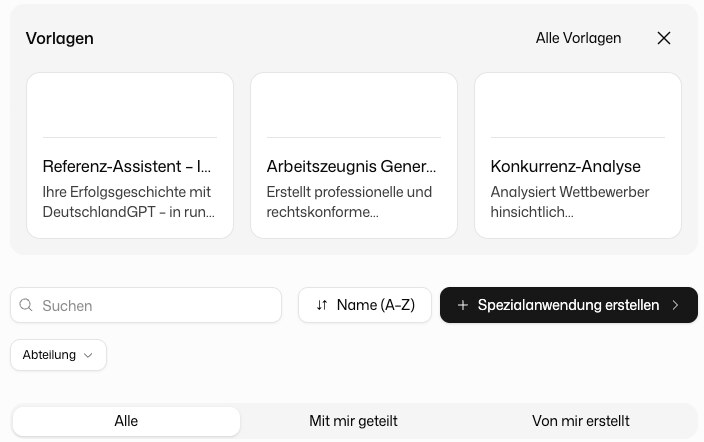
Open GPTs in the left sidebar. The page has three tabs:
| Tab | What it shows |
|---|---|
| All | Every GPT you can use |
| Shared with me | GPTs colleagues have shared with you |
| Created by me | GPTs you have built yourself |
To find the right one faster:
- Favorites: The star on a card pins the GPT to the top of the list, whatever the sort order. Only you see your favorites.
- Sorting: The sort button next to the search field sorts by name, newest, oldest or Most used. "Most used" only counts your own chats.
- Tags: The filter menus narrow the list by tags such as department or topic.
Click a GPT to open a chat with it. You can also start a GPT from the Tools menu next to the input field.
Start from a Template
The Templates block shows ready-made starting points from DeutschlandGPT and from your organization. Click Use template to chat with it right away, or open All templates to browse the full gallery. Whether you see templates at all depends on your role.
Opening a template offers Chat with template to use it as it is and Convert to GPT to copy it into a GPT of your own that you can adapt. The author of a template additionally sees Edit template. Seeing the gallery needs the role permission See the GPT template gallery, starting a chat from a template needs Use GPTs, and converting a template additionally needs Create own GPTs. In a chat you can also pick a GPT from the GPTs submenu of the Tools menu.
Create a GPT
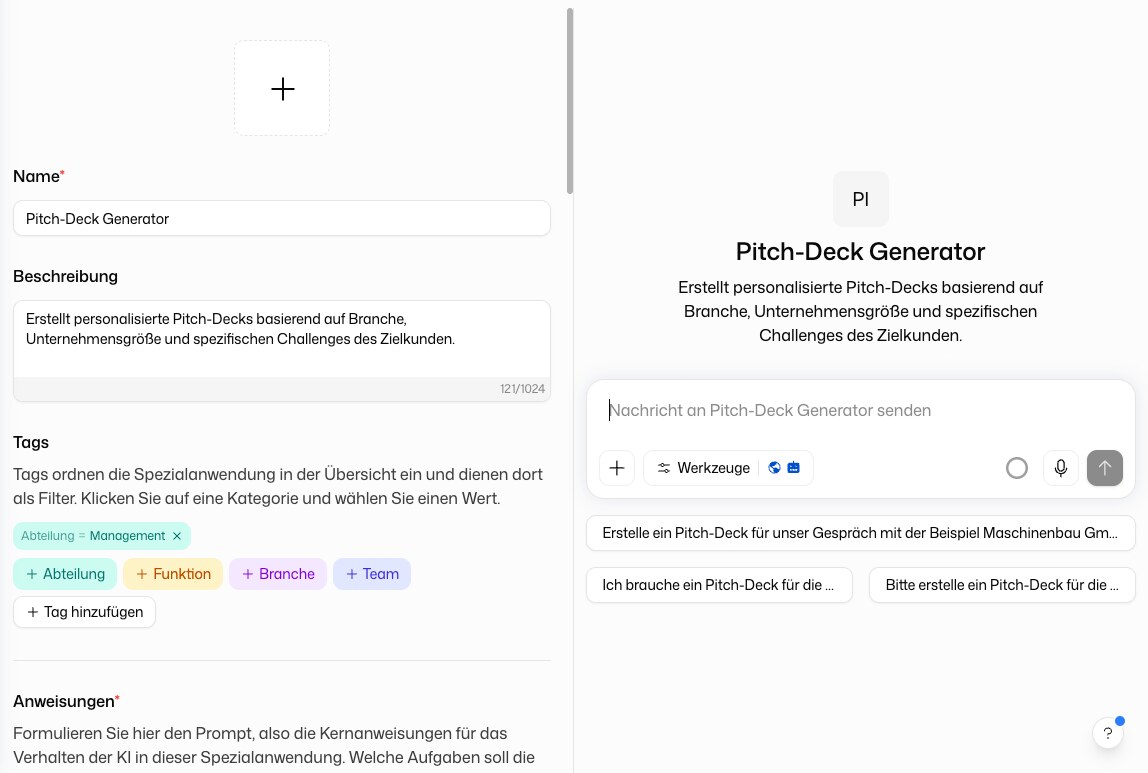
Click Create GPT at the top right, then fill in the fields. The chat on the right shows a live preview of the current configuration, so you can test it before you save.
Name and Description
The name is required and appears in the list and at the top of chats with the GPT. The description is optional, up to 1,024 characters, and explains the purpose to other users. The AI does not read it.
Image
Upload an image that appears on the card and in the chat.
Tags
Tags in the format category:value sort the GPT into the overview and feed its filter menus. When you type, tags already used in your organization are suggested. If you type an existing tag in different capitalisation, the spelling already used in your organization is kept. Organization administrators can rename, merge or remove tags on the Tags page.
Instructions
Required, up to 80,000 characters. This is the system prompt the AI actually reads. Describe:
- What tasks the assistant should handle
- How it should communicate with users
- What tone or role it should take
First Message
Optional, up to 5,000 characters. An opening message the AI shows automatically when a new chat starts. Use it to greet users, introduce the topic or ask a targeted opening question.
Language Model
By default the GPT uses User's language model, the model the user currently has selected. Alternatively, lock the GPT to a specific model.
Image Generation Model
In the same way you choose which model the GPT generates images with. This is worth doing when the task needs a particular capability, such as graphics with a transparent background. In chats with the GPT the image model is then fixed and does not have to be picked in the tools menu. If a user may not use the chosen model, the GPT falls back to that user's own image model. The field only appears when at least one image generation model is available to you.
Contextual Knowledge
Upload files the AI can read and reference when answering. Drag and drop them or click Upload files. A GPT holds up to 20 files, of which at most 10 may be images. Images serve as reference material, for example for a GPT that generates images in a particular style.
Actions
Under Actions, pick integration actions the GPT may use, for example reading the user's Outlook calendar. They work in chats with this GPT even when agent mode is off, as long as the user has connected that integration. For each action you decide whether it runs automatically or asks for approval first.
Example Prompts
Add up to 10 suggested prompts. A new chat shows up to four of them at random as buttons near the input field, which leads users to the most common use cases.
When you are done, click Save. With the right role you can also Save as template, which offers the GPT to your whole organization as a starting point.
Share a GPT
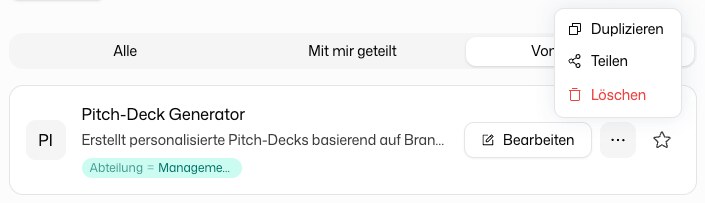
A new GPT is private. To share it, open the ⋯ menu on its card and choose Share. Add colleagues or groups and give each of them read access (use it) or edit access (also change it). Grants add up, and the stronger one wins.
Edit and Manage
The ⋯ menu on a card also holds:
- Edit: Opens the editor.
- Duplicate: Creates a copy you can adapt.
- Delete: Removes the GPT. All chats started with it are deleted too, and this cannot be undone.
Which entries you see depends on whether you may edit the GPT.