Security
Change your password, turn on two-factor authentication, and manage active sessions.
Settings → Security is where you keep your account safe: change your password, add two-factor authentication, and review the devices signed in to your account.
Change Your Password
Click Change Password. You enter your current password once, then the new one twice, at least 8 characters long. Use a strong password you do not reuse on other services.
If you always sign in through single sign-on or a provider such as Google or Microsoft, your account has no password of its own, and this section is not shown.
Turn On Two-Factor Authentication
Two-factor authentication (2FA) adds a second step at login. On top of your password, you confirm your identity with a one-time code from an authenticator app.
Scan the QR Code with your authenticator app. If you cannot scan it, open the tab Setup key (TOTP key) and enter the key in the app by hand.
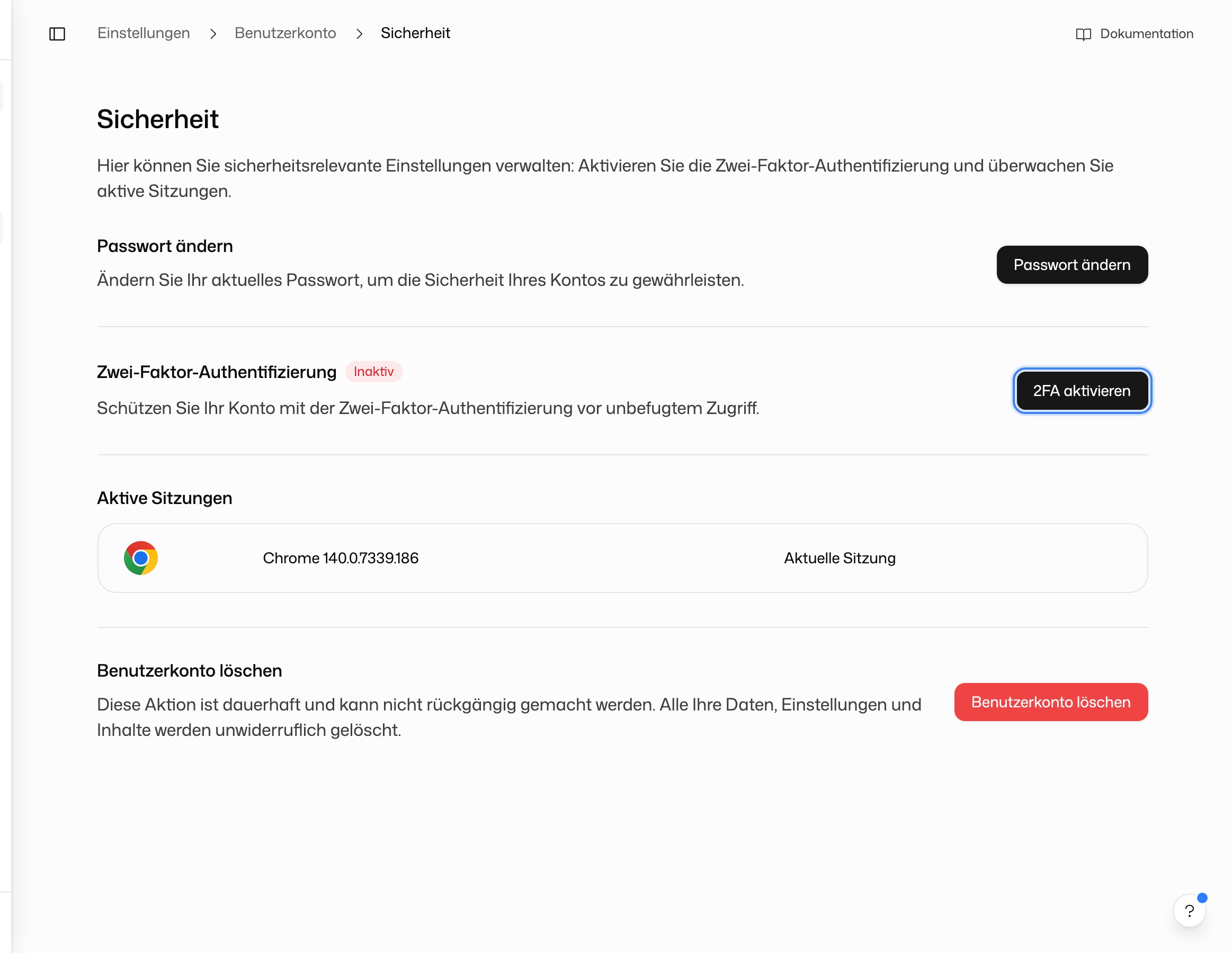
Once enabled, 2FA shows as Active, and every login needs both your password and a current code from the app.
DeutschlandGPT does not issue backup codes. Keep the setup key in a safe place, for example in a password manager, so you can set up the app again on a new phone. If you lose access to your authenticator app, contact support.
To switch 2FA off, click Deactivate 2FA and confirm with a current code. If your organization requires 2FA, the row carries the badge Set by your organization, the button is replaced by the note Required by your organization, and only your administrators can change that. Administrators also see the link Manage in organization; everyone else sees Your organization has set this.
Review Active Sessions
Active sessions lists every device and app currently signed in to your account: browsers, the desktop app, the mobile app, the Office add-ins and the Chrome extension. Each row shows the client and an approximate location derived from its IP address. Your own row is marked Current session.
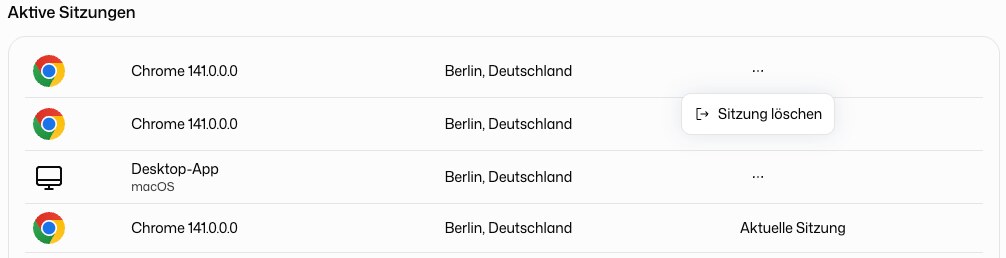
If you lose a device, or after signing in on a shared computer, open the ⋯ menu on that row and choose Delete session. The device is signed out. To sign out of the session you are using right now, open the account menu at the bottom of the sidebar and choose Sign out.
Delete Your Account
For personal accounts, the bottom of this page has Delete account. Deletion is permanent: all your data, settings and content are removed. You confirm by entering your email address. Accounts that belong to an organization, and subscriptions bought in the App Store or Google Play, cannot be deleted here. For what happens to your data afterwards, see Who can see your chats.