Office templates
Upload your organization's PowerPoint, Word and PDF templates so the AI builds documents on them
Upload your organization's Office templates and the AI creates new presentations and documents directly on them, with your logo, layouts, colours and fonts. The default template is applied for everyone automatically. You manage templates under Organization settings → AI & models → Office templates with the permission Manage organization settings.
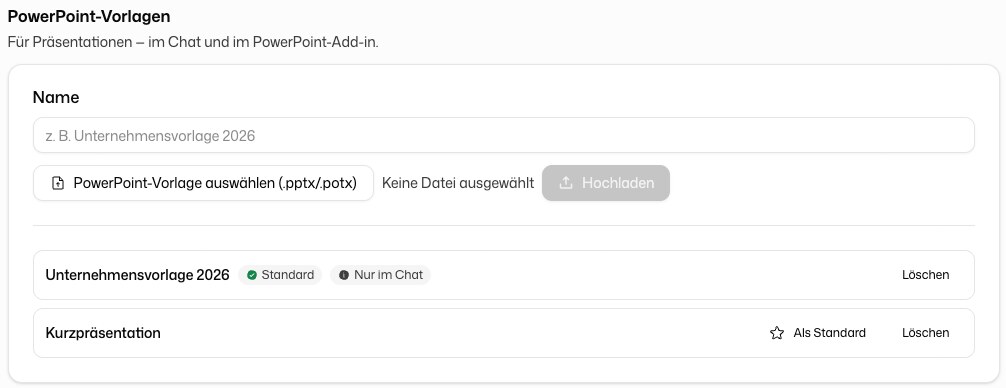
Template types
| Program | File types | Used for |
|---|---|---|
| PowerPoint templates | .pptx, .potx | Presentations in chat and in the PowerPoint add-in |
| Word templates | .docx, .dotx | Documents in chat such as letterheads, reports and contracts |
| PDF templates | PDFs in chat: fillable forms are filled in, letterheads are overlaid with the new content |
In Word templates the AI keeps headers and footers, styles and page setup. Placeholders such as {{name}} are filled in.
Upload a template
- Click Upload template and pick the Program: PowerPoint, Word or PDF.
- Choose the file and enter a Name, for example "Company template 2026".
- Click Upload.
A template can be up to 30 MB.
Set the default template
Open the … menu in a template's row and choose Set as default. It then carries the Default badge and is used automatically whenever someone creates a document of that type.
A PowerPoint template marked Chat only keeps its design in its example slides instead of the slide master. It works in chat but not in the PowerPoint add-in. For the add-in, the design has to live in the slide master and its layouts.
What members see
Members find your organization's templates under My Office templates in their own settings. They can use them but not change them, and they can upload personal templates next to them. The PowerPoint add-in is described under Add-ins.