Integrations
Control which integrations are available in your organization and what they may do
Set the organization-wide baseline for each integration under Organization settings → Tools & integrations → Integrations. Whatever you choose here applies to every member. Exceptions for a group or a single person are set on their own pages. You need the permission Manage organization settings.
Turn integrations on or off
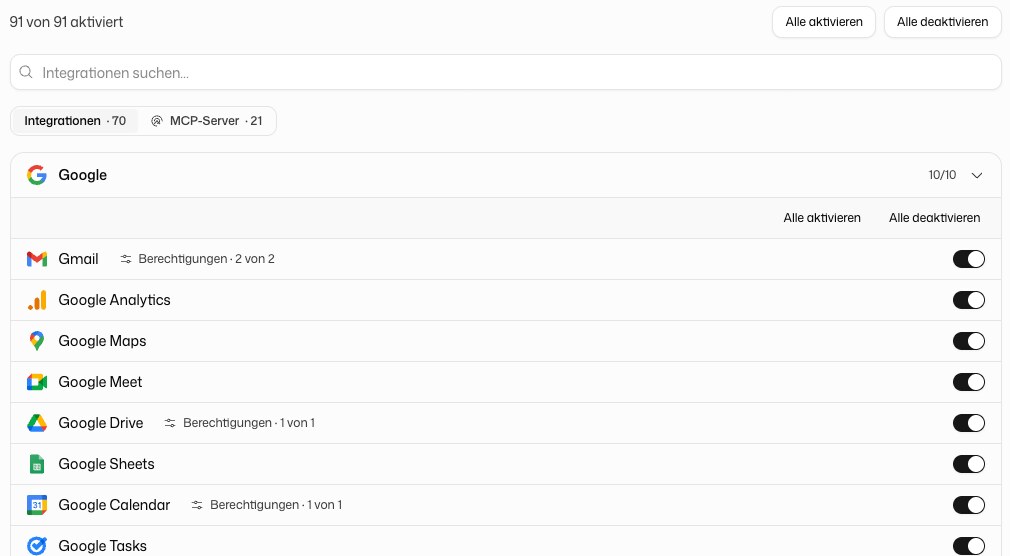
Every integration has a switch. Switched off here, it is unavailable for every member without an exception for their group or for themselves. The summary at the top shows how many integrations are enabled, for example "12 of 40 enabled".
Integrations are listed in a table with the columns Integration, Provider, Permissions and Availability. Search integrations… filters by name and provider, and a click on a column header sorts. The filters Provider (for example Microsoft, Google or Atlassian) and Availability narrow the list. Enable all and Disable all at the top switch every integration at once. With a provider filtered, the bar above the table switches every integration of that provider.
If your organization has its own MCP servers, there is also the filter Type with Integrations and MCP servers. MCP servers carry the badge MCP and are switched on and off the same way.
Limit what an integration may do
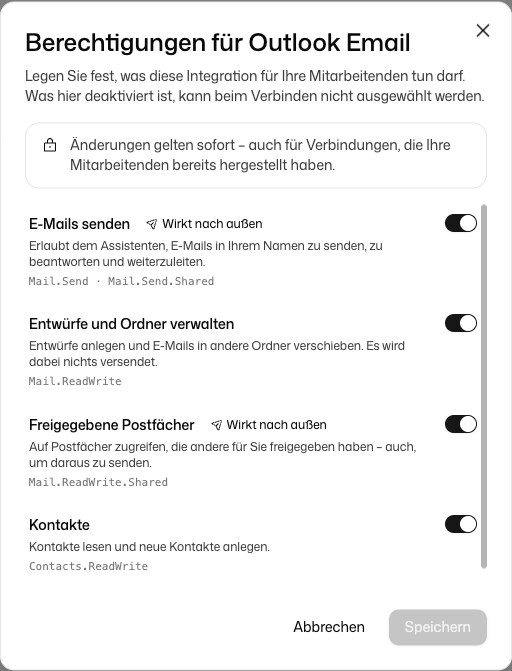
Many integrations can do more than read, for example send email, manage calendar events or edit issues. Click Permissions · x of y in an integration's row to open Permissions for … and switch off what your members should not be able to do. Permissions marked Acts outside DeutschlandGPT change something in the connected service.
- Anything switched off here cannot be chosen when members connect the integration. They see that it was switched off by your organization.
- Changes apply immediately, including to connections your members have already made.
How members choose permissions when connecting is described under Integrations.
Exceptions for groups and single members
The baseline applies to everyone. To make an exception, open a group under Groups or a member under Members and use the section Models & integrations. There you set each integration to On, Off or Inherit. For example, you can keep everything on for the group "All Administrators" while the rest of the organization only gets a few integrations.
Integrations added later
This page lists what exists today. Whether an integration DeutschlandGPT publishes in future is available right away is decided by the switch Enable new integrations automatically under Tool policies. This page shows the current value above the table, with the link Change in Tool policies. It is on by default, so a new integration becomes available to your organization immediately.
Switch it off and every integration published from then on starts blocked and appears here switched off until you release it. Disable all alone does not achieve this: that click switches off the integrations that exist at that moment and says nothing about the ones that come later.