Data tables are a small database for your workflows. Node outputs only exist during one run; rows in a data table stay until you change or delete them.
Use Cases
- Remember progress: which items were already processed, when a workflow last ran
- Collect results: one row per run, evaluated later
- Pass data between workflows: one workflow writes, another reads
- Look up reference data: settings or mappings a workflow needs at runtime
- Keep a log: record what a workflow did
Creating a Data Table
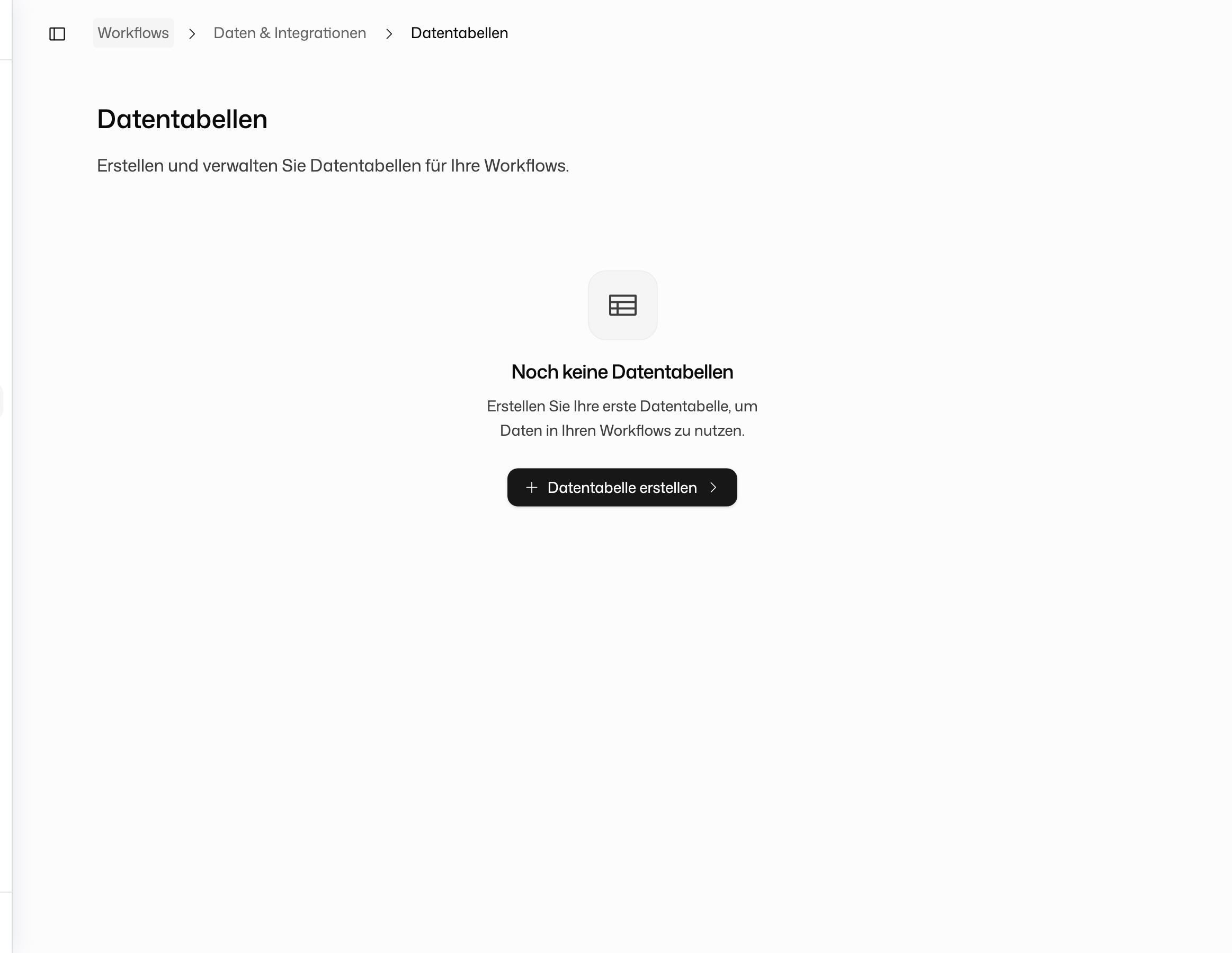
Open Data Tables under Data & Integrations in the Workflows sidebar. The create menu offers three ways:
- Create empty table: creates a table named "New Data Table" and opens it. Define the columns on the Schema tab.
- Import from CSV and Import from Excel: a wizard in three steps, Import file, Configure columns and Confirm import. It accepts CSV and Excel files (.xlsx, .xls). For Excel you pick the sheet. For every column you set the key and the type, with a preview of the data.
Columns
Each column has a Key, which workflows use to address it, a Label and a Type:
| Type | For |
|---|---|
| Text | Any text |
| Number | Numbers |
| Boolean | Yes or no |
| Date/Time | Dates and timestamps |
The column _id is created automatically and holds a unique number for every row.
Viewing and Editing a Table
Open a table to edit it. The editor has three tabs:
- Data: browse rows, edit values in place, Add row, delete rows, and Export the table as CSV, JSON or Excel with a choice of columns
- Schema: add and change columns with Add new column
- Settings: name, description, table ID and creation date
A table belongs to the person who created it. Your workflows can use your tables. If you share a workflow, its runs keep access to the tables it uses.
Archiving a Table
To remove a table, archive it from the overview. An archived table is no longer visible and can no longer be used by workflows.
Using Tables in Workflows
In the node picker, Integrations → Data Tables offers Get Rows, Insert Row, Update Rows and Delete Rows. The Data Table integration adds Find First Row, Upsert Row and Count Rows. Inputs and outputs of all seven are on the Data Table integration page.
Best Practices
Set a limit. Get Rows without a filter returns every row. Use Limit and Offset to keep large tables from flooding a node.
Use Upsert for repeated input. If a workflow can process the same item twice, for example after a webhook retry, Upsert Row avoids duplicate rows.
Confirm destructive steps. Switch on Approval required for nodes that update or delete rows if mistakes would be costly.
Clean up. A scheduled workflow that deletes old rows keeps tables from growing without end.