Notifications
Choose who receives your organization's notification emails and set their subject lines
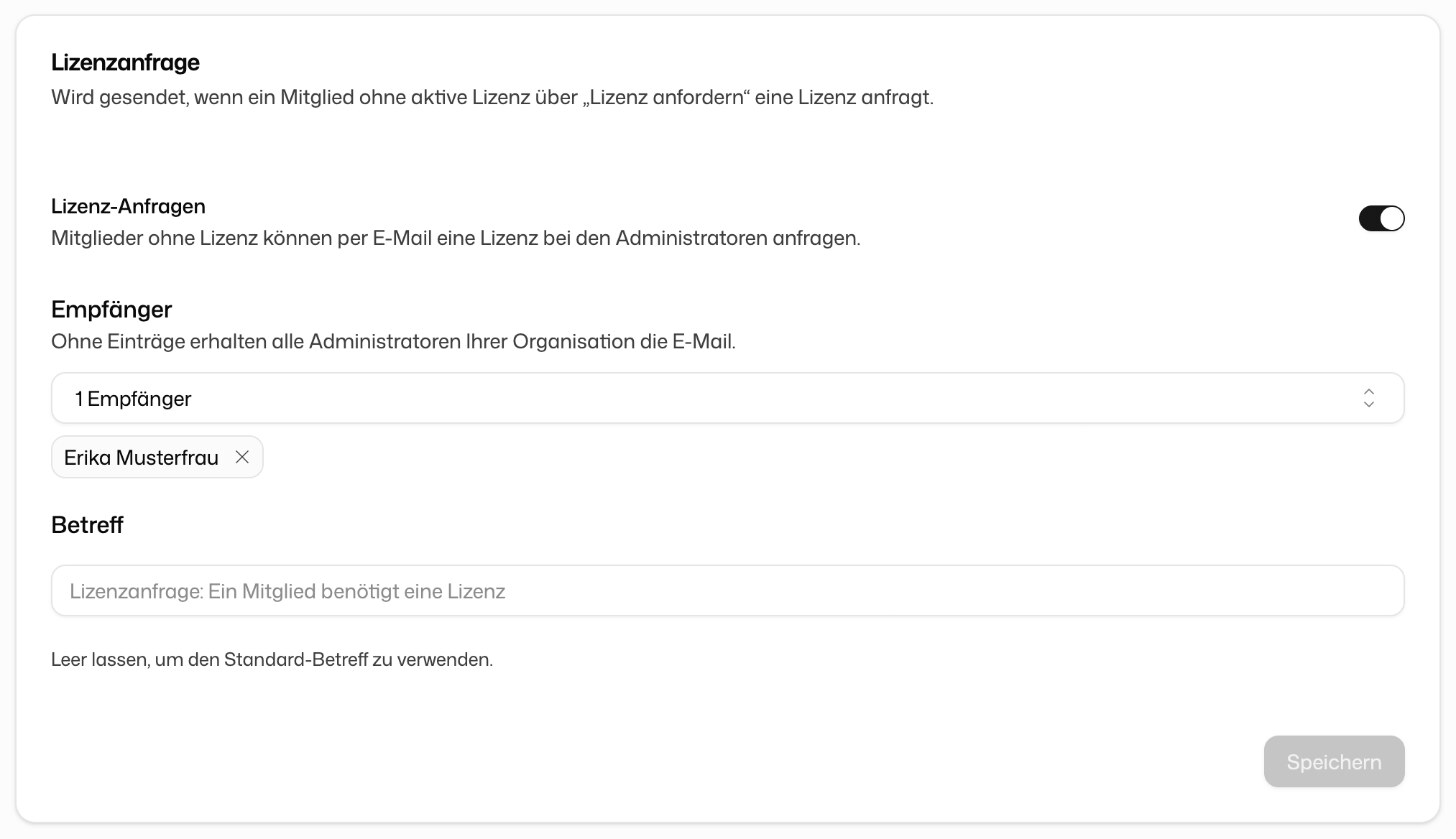
Some events send an email to your organization's administrators. Under Organization settings → General → Notifications you decide which of these emails go out, who receives them and which subject they carry. You need the permission Manage organization settings.
The three notification emails
| Switch | When it is sent | |
|---|---|---|
| License request | License requests | A member without a license asks for one via "Request license" |
| Budget request | Budget requests | A member has reached their monthly AI budget and asks for more |
| New AI models | New model announcements | A new AI model becomes available, so you can enable it for your members on purpose |
Switching off License requests or Budget requests also means members can no longer send that request by email.
Choose recipients
Without any entries, all administrators of your organization receive the email (All administrators (default)). To send it to specific people instead, search for members under Recipients and add them.
You can also pick a group. Every member of that group receives the email, including people who join the group later, because membership is checked anew on each send.
Set the subject
Enter your own text under Subject, for example to make the emails easier to filter. Leave the field empty to use the default subject. Click Save when you are done.