Getting Started
Create your account, sign in, and start your first AI conversation, whether you're an individual user, a team admin, or part of an enterprise.
Pick the path that matches you. Individual users can sign in and start chatting in under a minute. Team and enterprise admins set up a shared workspace first.
Sign in or create an account
Go to the application. There is a single login page. If you already have an account you're signed in; if not, one is created for you.
- Google, Apple or Microsoft: one click with that account.
- Email: enter your email address and click Continue. On the next step you enter your password with Continue with password.
If your organization uses single sign-on, just enter your work email address. DeutschlandGPT recognizes the domain and sends you to your company's sign-in page.
Start chatting
After signing in you land in a new chat with the input field focused. Just start typing.
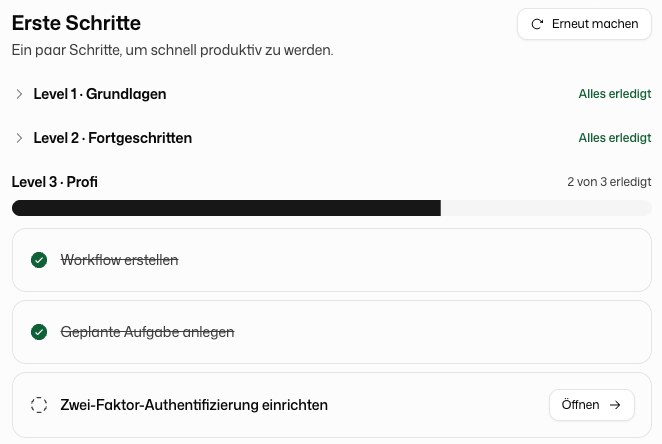
New users are also welcomed with a Getting started checklist. It walks you through the first steps in three levels: Basics, Advanced and Pro, for example your first chat message, your personal settings, a GPT, an integration or two-factor authentication. A level unlocks once the previous one is done. You find the checklist at any time under Settings → Getting started.
The organization settings start page
Organization settings opens an overview with one tile for every section your role may open, grouped like the sidebar. Next to what the section is for, each tile shows how it is currently set, for example how many licences are assigned or whether every app is allowed.
- Needs attention sits at the top and lists what is waiting for you, for example members without a licence, expired invitations, administrators without two-factor authentication or an open payment. When nothing is open it says All good: nothing is waiting for you.
- Search settings… (or
⌘K/Ctrl+K) finds a section or a single setting and jumps straight to it. - What your organization has decided shows members the rules that apply to them, for example how long chats are kept or whether two-factor authentication is required, and under Your administrators the people they can turn to. Administrators find the same card below the tiles as How members see your settings.
Ways to use DeutschlandGPT
DeutschlandGPT is more than a chat window. Depending on how you work, you reach the same secure AI through several surfaces. They all run on one account, so your conversations, models and organization settings stay consistent everywhere.
| Product | What it's for |
|---|---|
| Chat | The core web app: talk to leading AI models, attach files, browse your history, and organize work in projects. |
| Workflows | A visual no-code builder for automated, multi-step pipelines that run on a schedule or on demand. |
| Integrations | Connectors for Slack, Microsoft Teams, Confluence, Jira, Google Workspace, and more, so the AI can search your data. |
| Platform API | An OpenAI-compatible REST API for embedding DeutschlandGPT's models in your own applications. |
| Microsoft Office add-ins | DeutschlandGPT inside Word, Excel, Outlook, and other Office apps, rolled out across your organization. |
| Mobile app | iOS and Android apps for chatting on the go. Admins can enable or disable mobile access org-wide. |
| Desktop app | Native apps for Windows, macOS and Linux with deeper system integration. |
What's next?
Learn the chat interface, model picker, attachments, and conversation history.
Automate repetitive tasks with the visual workflow builder.
Connect Confluence, Slack, Teams, and other tools so the AI can search your data.
Embed DeutschlandGPT's AI capabilities in your own applications.