Data Retention
Set how long your chats are kept and delete them all in one step
Settings → Data retention controls how long DeutschlandGPT keeps your chats, and lets you wipe your entire history whenever you need to.
Set the Retention Period
Under Automatic deletion of chats, choose how long a chat is kept before it is deleted automatically: Daily, Weekly, Monthly, Quarterly, Yearly or Never. Never keeps chats until you remove them yourself. The line below the picker states what currently applies, for example that your chats are permanently deleted once they are older than a certain number of days.

Your organization can set a maximum retention period. The setting then shows Your organization's limit with that period. You can always pick a shorter interval, never a longer one. Older chats are deleted even if you selected a longer period before. Administrators also see the link Manage in organization.
When a chat is deleted automatically, the files you attached to it and the files the AI generated in it are deleted with it, including from Generated Files. A file that is still used elsewhere stays: a project or folder file, a Custom GPT's knowledge, or a file that another of your chats or one of your shared links still contains.
If your plan does not include automatic deletion, you see Upgrade plan instead of the picker. In an organization the button opens the organization's billing page and appears only if you may manage billing; every other member sees a note to contact their administrator instead.
Delete All Chats
Under Delete all previous chats, click Delete and confirm to remove every chat permanently.
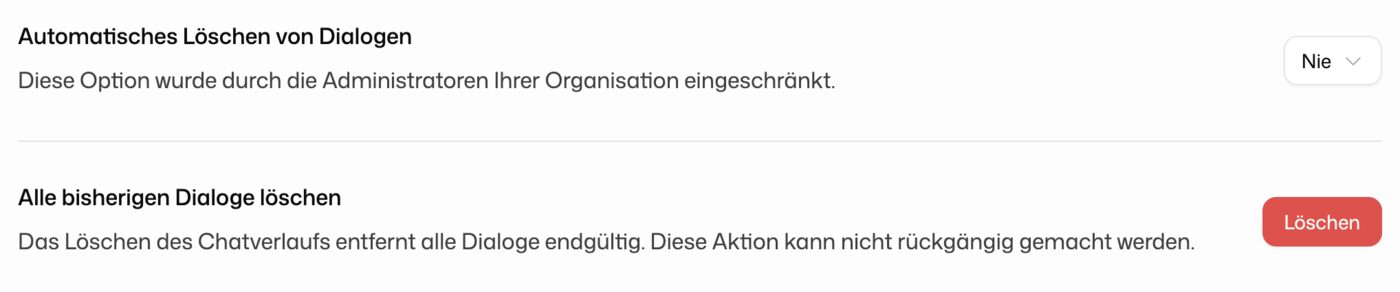
Deleting your chat history is irreversible. Once removed, chats cannot be recovered.