A project keeps related conversations together under one shared context. Set the instructions and files once, and every chat inside the project uses them automatically, without you repeating yourself each time.
Create a Project
Click Projects in the left sidebar, then Create Project. The project is created right away under the name "New project" and opens.
Click the project name at the top of the project panel, type a new name and confirm with the checkmark. Click the icon next to it to choose a different icon.
Under Instructions, describe the context, tone or constraints the model should follow in every chat of the project.
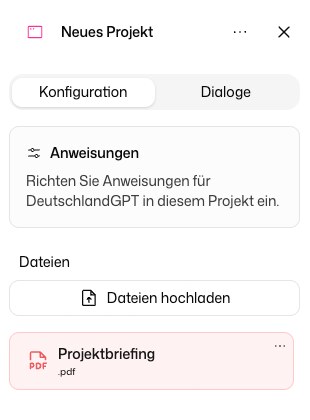
Project Instructions
Project instructions work like a persistent system prompt that the model reads before every message. Changes apply from the next message in every conversation of the project. Keep them concrete:
- "You are a legal assistant for [Company]. Always use formal German. Cite relevant EU regulations where applicable."
- "You are a marketing copywriter. Always produce three alternatives. Keep the brand voice energetic and concise."
- "You have access to our product documentation. Help users troubleshoot issues and escalate to support when needed."
Project Files
Upload PDFs, Word documents or text files to give the model permanent context. Every conversation in the project can reference them, the same way attached files work in a single chat. Large documents are indexed on upload and can take a moment before they are available.
Each file has a ⋯ menu. To clear out many files at once, switch to select mode, tick the files and click Delete selected.
Move Chats into a Project
An existing chat can join a project at any time. Open its menu in the sidebar, choose Move and pick the project. Inside a project, Remove from project moves it back out.
A chat with a GPT can live in a project too. If you open a GPT from the Tools menu while you are in a project, the new chat starts in that project and uses both the GPT's and the project's instructions and files.
Share a Project
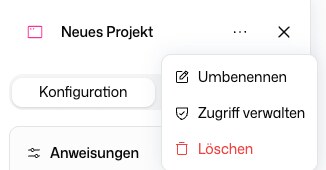
Open the project, then open the ⋯ menu in the header of the project panel and choose Manage Access. Add colleagues or groups and give each of them read or edit access.
- Everyone who can open the project sees all of its conversations and files.
- A conversation that someone else started is read-only for you, also with edit access. Files in it, such as generated documents and attachments, can still be previewed and downloaded. To work in the project, start your own chat in it.
- Edit access covers the project itself: name, icon, instructions, files and sharing it with others.
- Grants add up. If you have read access directly and edit access through a group, you have edit access.
Only the owner or someone with edit access can share. Creating a group in the organization settings grants nothing by itself: the group has to be added here. You need the role permissions Use projects to open projects, Create new projects to create them and Share own projects to share them.
Rename or Delete a Project
The same ⋯ menu in the project panel header also has Rename and Delete. Deleting a project also deletes your chats in it and its files. If the project belongs to someone else, deleting it removes it for the owner too, and the confirmation dialog says so.
Projects or GPTs?
Use a project when you want a workspace where related chats share instructions and files. Reach for a GPT when you want a reusable assistant with a fixed persona and example prompts that each new chat starts from.