Add your own MCP server
Connect any remote MCP server so its tools become available in chat, Code, Cowork and workflows
Beyond the prebuilt integrations, you can connect your own remote MCP server. Its tools then show up like any other integration, in chat and in the desktop products.
Model Context Protocol is the open standard for exposing tools to an AI assistant. If a service offers an MCP endpoint, this is how you plug it in without anyone writing an integration for it first.
You need the permissions Use MCP servers and Add MCP servers. If you do not see Create MCP server under Integrations in the browser, your role does not include them. Ask an administrator.
Adding one
Open Integrations: in the browser under Settings, in the desktop app with
Cmd/Ctrl+Shift+E.
In the browser, click Create MCP server. In the desktop app, click Add and then Remote MCP server.
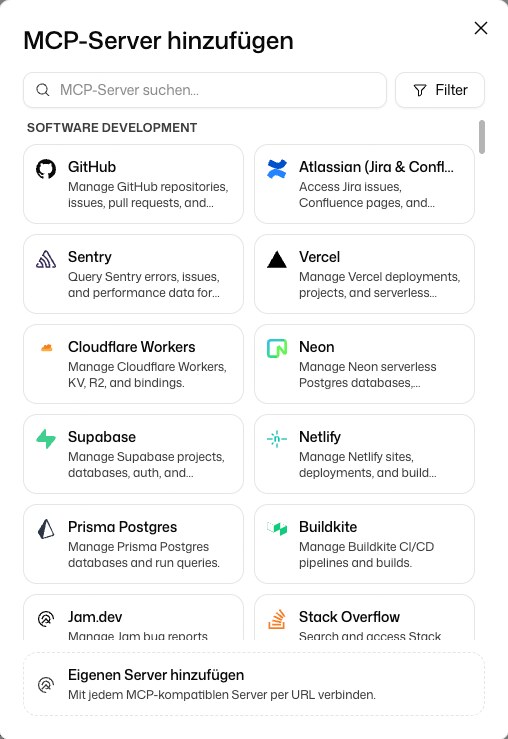
The dialog Add MCP server lists ready-made servers. The desktop app shows the same list as a page, with Search servers… and, for your own server, Custom server. Find one with Search for an MCP server… or narrow the list with Filter. View docs opens the provider's documentation. If your server is not in the list, choose Add a custom server at the bottom. Every entry is marked External MCP server. If one of the ready-made integrations covers the same provider and is available to you, the entry says so and links to it.
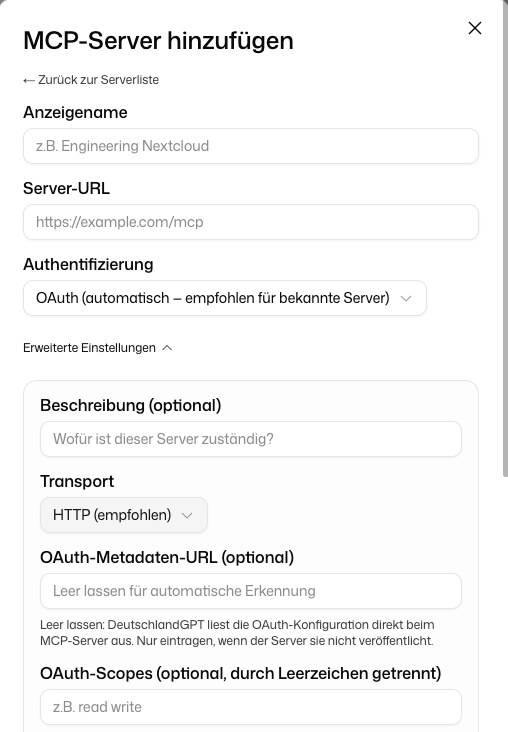
For a custom server, enter a name and the Server URL, and optionally a Description (optional). The name is what you and your colleagues see in the list, so name it after the service rather than after the protocol.
Authentication
| Method | When to use it |
|---|---|
| OAuth (automatic, recommended for known servers) | The server supports OAuth. Each user signs in themselves, with their own permissions |
| API key (custom header or query param) | The server expects a key in a header or a query parameter |
| Bearer token (Authorization header) | The server expects a fixed token in the Authorization header |
| None: public or local server | A public server that needs no credentials |
OAuth is the default and usually the right choice. It only needs the name and the URL: the address of the authorization server is derived from the server's own URL, at the well-known path virtually every MCP server uses. Each person who uses the integration signs in as themselves, so nobody shares a credential and access follows whatever the service already grants them.
For API key, say where the key goes: as a header or as a query parameter, under which name, and with a prefix if the service wants one, for example Bearer .
Everything else is in the collapsed Advanced settings: the transport, an explicit authorization-server address, OAuth scopes, your own client ID and secret, and Additional HTTP headers. Additional headers are sent with every request, for example a profile header the vendor requires. Use them for non-secret values only, because everyone who can see the server can see them. Keys and tokens belong in the authentication. If a value in the advanced section fails validation, the section opens itself instead of the save looking like it did nothing.
Servers that sign in through Microsoft Entra ID
Some servers, such as the Azure DevOps remote MCP server, run their sign-in through Microsoft Entra ID. Entra does not support automatic client registration, so you need an app registration of your own in your tenant:
In Entra, create an app registration with the platform Web and that URL as its redirect URI, and create a client secret under Certificates & secrets.
Under API permissions, add the delegated permission the service requires. For Azure DevOps that is Azure DevOps → user_impersonation. If your tenant has user consent for apps turned off, an administrator has to grant the permission once for the organisation.
In the Advanced settings, enter the app's OAuth client ID and OAuth client secret, then save.
After that, each person signs in with their own Microsoft account when they connect. With None as the authentication, a server like this cannot be connected.
Transport
By default the transport HTTP (recommended) is used, the modern streamable HTTP. Older servers that only speak HTTP with server-sent events work too: choose Server-Sent Events in the advanced settings. If a connection attempt fails with a transport error, this is the first thing to try.
A server on your own network
The connection to an MCP server is made by our infrastructure, not by the user's device. Two things follow from that. The endpoint has to be reachable over public HTTPS, otherwise the URL is rejected when you save it. And it makes no difference which network the devices are on, or whether they move between networks: laptops that roam between the office, a VPN and mobile data need no configuration for this.
For a server that currently only runs internally, two approaches work well:
- A reverse proxy or API gateway you already operate. Publish only the MCP path under a public DNS name, terminate TLS there with a publicly trusted certificate, and put authentication in front of it. The internal server itself stays untouched.
- An outbound tunnel, such as Cloudflare Tunnel or a comparable service. The connection is established from the inside out, so you need no inbound firewall rule, no static public IP and no certificate of your own. This is usually the faster route when several firewalls are involved.
Either way: publish the MCP endpoint only, not the whole service, enforce authentication at the edge, and give the MCP server internally only the rights its tools actually need. OAuth is the best choice here too, because each person then acts with their own permissions instead of a shared token.
There is no tunnel through the desktop app and no relay through the Windows client, and an IP-level allowlist is not a substitute for authentication.
Separately from this, the desktop app can run MCP servers locally on your computer and let Code and Cowork use their tools, if your organization allows it. Such a server is a program on your device. You set it up in the desktop app under Integrations, via Add and Local MCP server. It then appears in the On this device area, and only Code and Cowork can use it. See Local MCP servers.
Sharing it with your team
There are two independent things you can share, and mixing them up is the most common source of confusion:
| What you share | What the recipient gets | Where |
|---|---|---|
| The server (definition) | It appears in their integration list, and they connect it with their own credentials | The menu on the integration in the overview |
| The credentials (API key) | They use your key without ever seeing it | The menu on the integration's detail page |
A common combination: you add the server and share the definition so your team can see it, and you also share the key so everyone uses the organization's credentials without being able to read them. Both shares are managed separately and can be revoked at any time. Sharing needs the permission Share your own MCP servers.
Using it
Once connected, the server's tools are available in chat, in Code and in Cowork, through the same server-side dispatcher as every other integration. In a workflow, you call a tool as a fixed step with the MCP Tool node, or give it to the AI Agent as a tool, which then decides itself when to use it. The workflow assistant knows your servers and can set up either for you.
Every action that changes something in the connected service needs your approval, separately from file changes. In the desktop products, Approve connections automatically lets those run without asking if you would rather not confirm each one.
In a workflow nobody is asked: selecting a tool in the AI Agent or in the MCP Tool node is the approval. A tool that the person who owns the connection set to Never allow under Permissions stops the workflow run with an error. The same applies when they lack the Use MCP servers permission or the organization switched the server off for them.
On the server's detail page, Run read-only tools without asking lets tools the server declares as read-only run without an approval request. That declaration comes from the server itself and cannot be verified, so only switch this on for servers you trust.
An MCP server is code someone else runs, and its tools can act on your behalf. Only add servers you trust, and prefer OAuth so it acts with your own permissions instead of a shared key.
What administrators control
Administrators can switch MCP servers on or off for the whole organization under Organization settings → Tools & integrations → Integrations, in the category MCP servers, and make exceptions for groups or single members.
When it stops working
- A tool disappeared or a new one is missing: the server changed its tool list. You do not need to connect again: when the stored tool list is older than an hour, the chat reloads it in the background and the next message sees the change. To see it right away, open the integration's detail page to reload it.
- Authentication errors: for OAuth, delete the connection and connect again to run a fresh sign-in. For an API key, check whether the key was rotated.
- The server cannot be reached: it has to be reachable over public HTTPS. A server on a private network is unreachable from our infrastructure, and is deliberately blocked as well. The same applies to a public URL that redirects to an address in a private network: the redirect is not followed.
- The URL is rejected when you save: the hostname has to resolve in public DNS. A name that only exists inside a VPN or an overlay network, such as a Tailscale
*.ts.netname or an internal DNS zone, resolves on your own devices but not from the internet. It is never about the domain's ending; no top-level domain is blocked. The error message says which of the two applies.