Groups
Bundle people into groups to share content, assign roles and control models and integrations
Groups bundle people so you can act on them once instead of person by person. You use them to share Custom AI Applications, document folders, skills or MCP servers, to pick notification recipients, to assign roles or learning courses, and to switch models and integrations on or off. You manage groups under Organization settings → Members & access → Groups.
Group list
The table shows each group with its Name, the number of Members and its Type. Search groups … finds a group by name or description, and the Type filter shows only System or only Custom groups. Click a row to open the group. The … menu at the end of the row offers Edit and, for custom groups, Delete.
System groups
Two groups are created automatically. They cannot be edited or deleted:
| Group | Members |
|---|---|
| All Administrators | Automatically contains every user with the Admin role |
| All Users | Automatically contains every active user in the organization |
These groups keep themselves up to date. Members are added and removed as users are activated, deactivated or change roles.
Create a group
Click Create Group to create your own group, for example Sales or Development.
- Name: required. Identifies the group across the platform.
- Description: optional, up to 1,024 characters.
Manage members
Click Manage Members to add or remove people. The member table shows each person's name and email and marks the group's Creator. Use the menu next to a member to remove them from the group.
When SCIM is active, the page shows SCIM group management active. Groups and their members then come from your identity provider and are managed there. See SSO & SCIM.
Models and integrations for a group
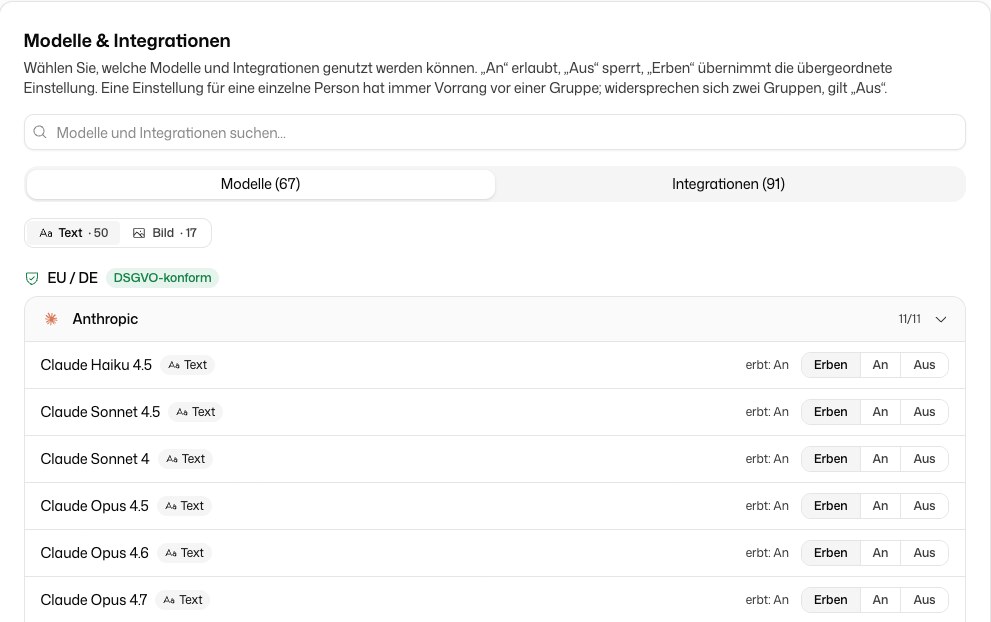
Each group page has a section Models & integrations. Here you set exceptions to the organization-wide defaults for this group, per model and per integration:
- On allows it for the group.
- Off blocks it for the group.
- Inherit keeps the setting from the level above. The hint "inherits: …" shows what currently applies.
If two groups of a person disagree, Off wins. A setting for a single person on the Members page always overrides group settings. The defaults themselves are set under AI models and Integrations.
Delete a group
Choose Delete in the group's … menu or click Delete Group at the bottom of the group page. This is permanent.
Deleting a group removes everything granted through it. Content that was shared only with this group is no longer accessible to its former members.