Chat defaults
Decide which tools a new chat of your members starts with and which example prompts the start screen shows
Under Organization settings → AI & models → Chat defaults you decide what a new chat of your organization's members starts with: which tools are already switched on and which example prompts the start screen suggests. You need the permission Manage organization settings.
Web search, image generation and agent mode by default

Three switches set the starting state of every new chat: Web search on by default, Image generation on by default and Agent mode on by default. Each takes effect as soon as you change it. Your setting is the default every member inherits. It behaves differently depending on its position:
- On: every new chat starts with the feature. Members can switch it off for themselves in the input field. That choice of their own then holds for all their later chats until they switch the feature back on.
- Off: every new chat starts without the feature, even for members who had switched it on for themselves before. Members can switch it on for the chat they are in; the next chat starts without it again.
A default of Off is therefore a floor: members may be stricter than the organization for themselves, but not permanently more permissive.
Agent mode lets the assistant search connected integrations and document folders. That uses more tokens per request, so think about costs before turning it on by default.
To deny a feature to certain employees entirely, remove the matching permission from their role under Roles, for example Use web search in chat or Use agent mode in chat. The switch in the chat then disappears for them.
Example prompts
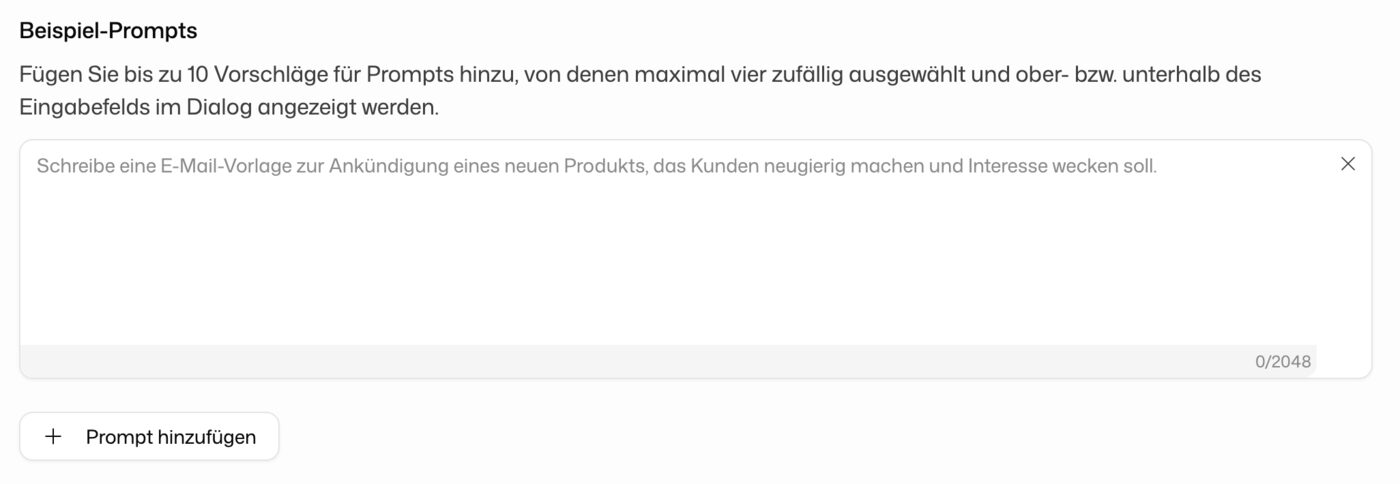
With Add prompt you create up to 10 suggested prompts with up to 2,048 characters each. Up to four of them appear at random above the input field in new chats for everyone in your organization, which steers your team towards common use cases. Empty entries are dropped when you save.