Integrations
Connect external services so the AI can search and use their content in your chats
Connect a service and the AI can answer straight from your own data: Confluence articles, Jira tickets, emails, calendar events and much more. You manage your connections under Settings → Account → Integrations.
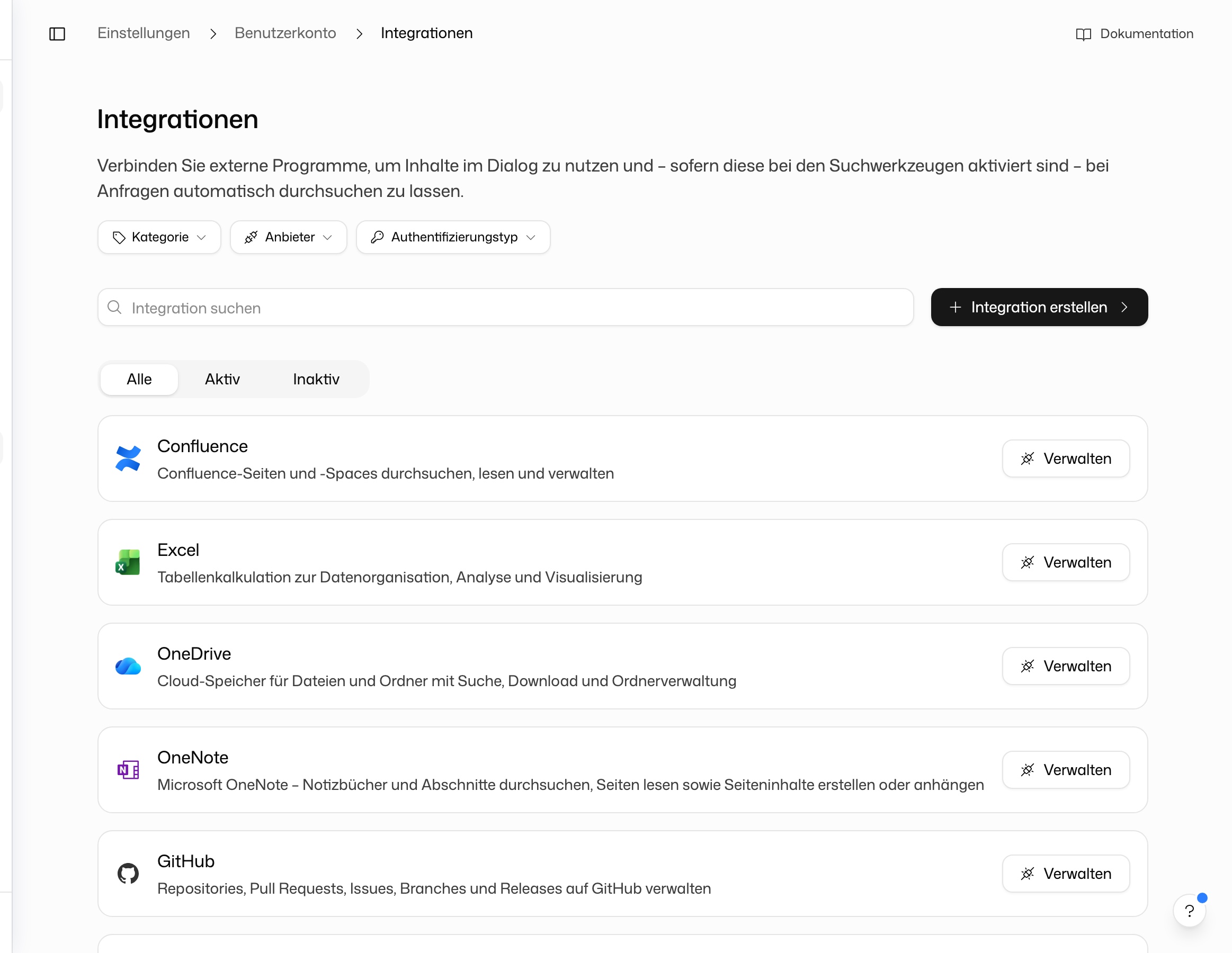
Find an integration
The overview lists every integration your organisation allows. Narrow it with the tabs All, Active and Inactive, the search field, and the filters Category, Provider, Auth Type and Origin. A card shows Connected once you have a connection. A label tells you where an entry comes from: Built-in for the ready-made integrations, External MCP server for an MCP server, WebDAV for a WebDAV connector.
For the full list of services, see Workflows → Integrations.
Connect an integration
Open the integration
Click Manage on the integration's card. The detail page shows your Connections and the Available actions of the integration.
Add a connection
Click Add connection. Depending on the service, you sign in with the provider or enter an API key. The connection gets every permission your organisation allows for this integration.
Choose permissions yourself (optional)
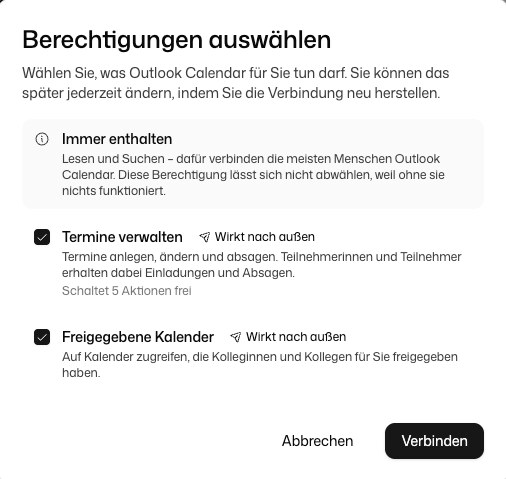
For services that can do more than read, an arrow next to Add connection opens Connect with selected permissions. The dialog Choose permissions then lets you decide what the integration may do for you. Reading and searching are Always included. Everything beyond that, such as sending emails or managing events, you switch on individually. Permissions marked Acts outside DeutschlandGPT change something in the connected service. Click Connect to continue.
Permissions your organisation has switched off show Switched off by your organisation and cannot be chosen. After connecting, the detail page shows what you allowed under Granted permissions. To grant more later, use Reconnect to grant more permissions.
Each connector is its own connection, also within Microsoft 365 or Google, so connecting Outlook does not connect SharePoint. Finish a connect in the same browser you started it in, without a long break. If it fails after you signed in at the provider, click Connect again.
Choose permissions when connecting
The Microsoft and Google connectors, Slack, Jira, Confluence and GitHub offer named permissions such as Send emails, Shared mailboxes or Change files. If you leave a permission out, the connection still works for everything else. Without Send emails, for example, the AI can read and search your mailbox and prepare drafts, but it cannot send. The providers offer no way to edit the permissions of an existing connection, so connect it again to choose differently.
Your organisation can switch a permission off for everyone, for a group or for single people. That also applies to connections that already exist.
Connectors that use an API key, databases and most other third-party services have no such choice, because their providers grant access all or nothing.
How the AI uses an integration
To search a connected service in a chat, switch on Agent mode in the Tools menu and tick the source. Before the AI changes something in a connected service, for example sends an email, it asks you to approve the step, unless you allowed that kind of action to run without asking. See Tools.
To pick a specific file yourself, for example from Confluence, SharePoint or a WebDAV server, use Attach from integrations in the + menu.
If the AI cannot see your data, check in this order: the integration is connected, agent mode is on, the integration is ticked in the agent mode list, and your organisation allows the connector. If the Tools menu says the selected model does not support tools, switch to a model that does.
Several connections to one service
You can connect one service more than once, for example two mailboxes or two Confluence sites. In agent mode the AI then searches all of them and tells you which account a result comes from. If you only mean one, name it in your message. Before writing or sending, the AI asks which connection you mean. You can also untick single connections in the agent mode list.
Jira and Confluence: choosing the Atlassian site
If your Atlassian account can access more than one site, you choose the site after signing in at Atlassian. The page lists each site by name and address and marks the ones you have already connected. To connect a second site, connect again and choose the other one.
To move an existing Jira or Confluence connection to another site of the same Atlassian account, click Change site on the connection in the integration's detail page. You do not need to sign in again, and workflows and chats that use the connection keep it and work with the new site from then on. Only the person who made the connection can change its site. Projects, spaces and filters you picked in a workflow belong to the old site, so check those workflow steps after a change.
Sharing integrations
For connectors you create yourself (for example an MCP server like Statista or a WebDAV connection) there are two separate kinds of sharing:
- Share the server or connector (definition): recipients see the integration in their list and use it with their own credentials. Share it from the integration's menu in the overview.
- Share the credentials (API key): recipients use your key without ever seeing it. Share it per connection from the menu on the integration's detail page.
Example: you create the Statista MCP server and share the server so your team can see it. You also share the API key, so everyone uses the organisation's credentials without viewing them. The two shares are managed independently and can be revoked at any time.
On the cards you see Credentials shared when you share your credentials, and Using shared credentials when you use someone else's.
Create your own integration
With the right permissions, you add your own connector here. Create MCP server adds an MCP server (see Custom MCP Servers). The arrow next to it (More connector types) offers WebDAV / Nextcloud (see WebDAV).
You can share credentials inside your organisation with people or groups, using Share on the connection. This works for API key connections and for OAuth connections. With OAuth, recipients act under your account at the provider, and if you disconnect, the connection stops working for everyone you shared it with.
Connections in workflows
A connection belongs to the person who created it. A workflow may use it once you select it in one of its nodes. Sharing a workflow does not share your credentials: recipients can run the workflow, but they cannot see your key or use the connection in their own chats.
To stop a workflow from using your account, remove the connection from the node or disconnect it on the integrations page. Disconnecting takes effect everywhere the connection is used. Reconnecting creates a new connection, so open each affected workflow afterwards, select the connection again on its nodes and publish.
Connect Microsoft services (SharePoint, Outlook, Teams)
The Microsoft 365 integrations sign in through Microsoft. Depending on your organisation's tenant settings, connecting them can take an extra step.
Admin approval may be required. Some organisations require a Microsoft Entra administrator to approve DeutschlandGPT once before anyone can connect Microsoft integrations. The detail page of a Microsoft integration shows a link for this. If your connection fails with an "admin approval required" error, forward that link to your IT administrator with Copy link or Email to admin. They sign in and approve the requested permissions once for the whole organisation.
That approval covers the Microsoft connectors your organisation has enabled at that moment. If more are enabled later, the administrator opens the link again. If the AI reports missing access although the connection exists, the approval is usually still missing.
The SharePoint file picker needs one extra permission. If the picker asks for admin consent, forward the link it shows to your Microsoft administrator and try again after the approval.
Fix an integration that stopped working
When an integration stops returning results or reports an authentication error, its access has usually expired or been revoked. The connection then shows Needs reconnection. Delete the connection with Delete in its menu and click Add connection again. If paused workflows depend on a disconnected connection, the connection offers Reconnect & resume: it reconnects your account, moves those workflows onto the new connection and resumes them.
An integration commonly breaks when:
- Your organisation revoked the app's permissions in the identity provider.
- You changed your password or re-enrolled in MFA for that service.
- The access expired after a long stretch of inactivity.
- An administrator removed DeutschlandGPT from the list of approved apps.
If a Google connection does not appear although your Google account lists DeutschlandGPT, one of the checkboxes on Google's consent screen was left unticked. Connect again and tick all of them.