Document Folders
Upload and organize files so the AI can search and reference them in your chats
Store files in a folder and the AI can read and cite them in your chats. Access is always respected: the AI only touches documents you're allowed to see.
Create a folder and add documents
Create the folder
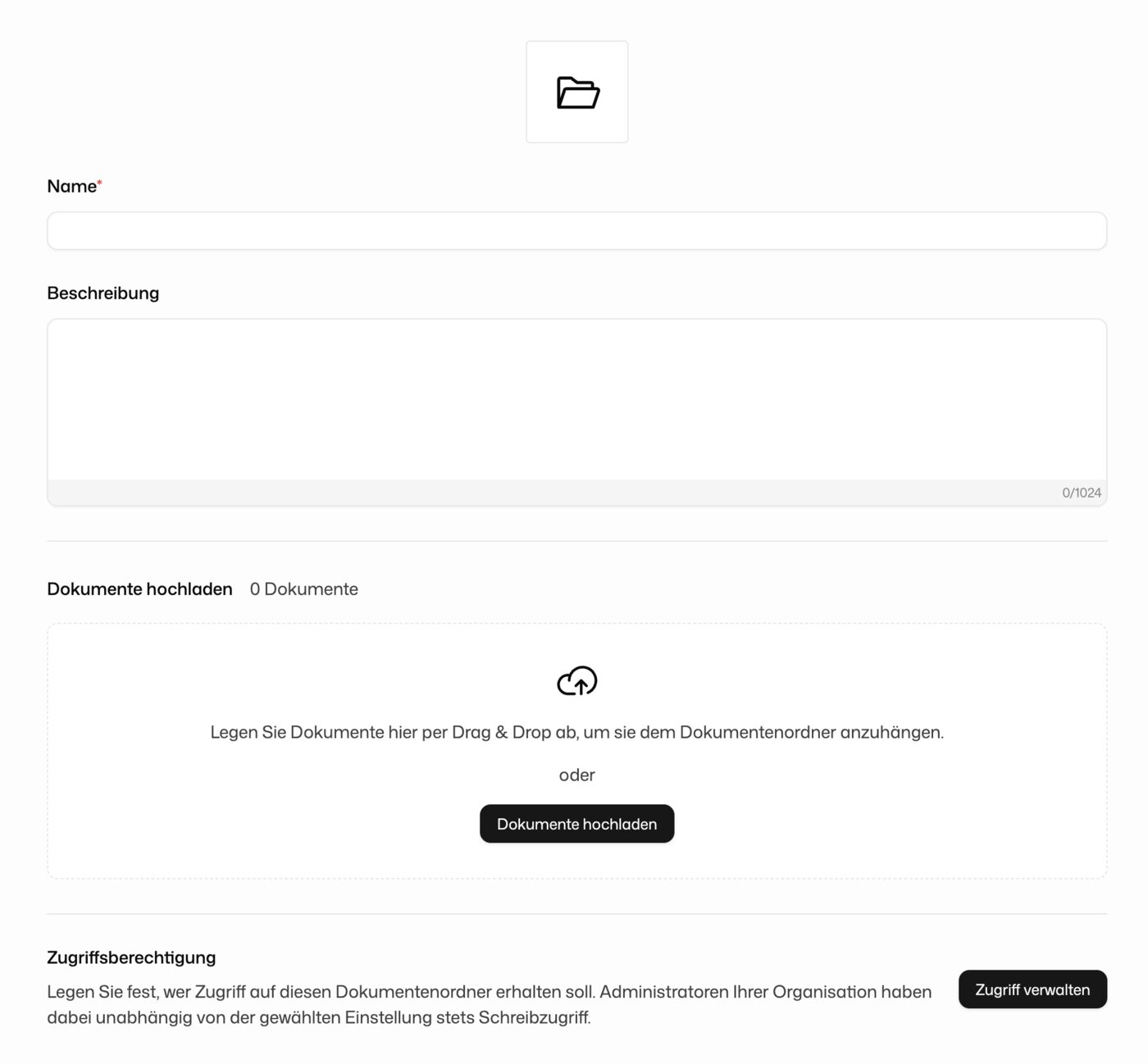
Click Create folder. Give it a Name (required) so you and the AI can identify it in the list. Add an optional Description (up to 1,024 characters) to note its purpose or contents, which makes the right folder easier to spot later.
Upload documents
Drag files onto the upload area, or click Upload documents. The folder shows how many documents it holds, and the file list gives you each document's name, size, and creation date. Remove a single file from the ⋯ menu next to its entry.
Control who can access a folder
Click Manage access to decide who can view or use the folder. In the browser, open the folder and find the button under Permission. In the desktop app, Manage access is in the folder's ⋯ menu. Organisation administrators always keep write access, whatever you choose here.
Sharing a folder with other members of your organisation needs the right permission. If you don't see the sharing option, or can't grant access to others, ask your organisation administrator.
Use a folder in the chat
Switch on Agent mode in the Tools menu next to the input field. Its source list contains every document folder you can use, each with its own checkbox. Tick the folders the model should search. See Agent mode.
Find your folders
The folder list splits into three tabs:
| Tab | What it shows |
|---|---|
| All | Every folder visible to you |
| Shared with me | Folders other users have shared with you |
| Created by me | Folders you created |
Delete a folder
Click Delete folder at the bottom of the folder settings. Deleting is permanent: every document inside is gone for good.
Deleting a folder can't be undone, and all contained documents are removed permanently. Download anything you want to keep first.